 Free and open source, MIT licence
 Hub: hub.leaplearnstudio.com
 By Benjamin Waller

 All guides
Make a Read Along Lesson from your activities
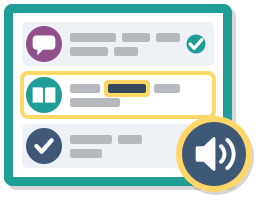
A Read Along Lesson puts a whole language lesson in one H5P activity. It can hold a conversation, a story, practice on their words, vocabulary cards and a quiz, each in a section of its own. Learners start from an overview, work through the sections one at a time and finish with a summary. Your site gets one score for the whole lesson.
This guide follows Read Along Lesson 0.1.2, published on 23 November 2026 and now on the hub. Its sections use Read Along Conversation 0.1.10, Read Along Storybook 0.14.20 and Read Along Practice 0.1.1.
Before you start
- A site with Read Along LessonA site you host yourself, such as WordPress with H5P, where an admin has installed Read Along Lesson. It brings the Storybook, the Conversation, Practice and every activity type a section can use, so nothing else needs installing. It cannot run on h5p.com.
- The parts of your lessonA conversation, a story, practice on their words, vocabulary cards and a quiz, or any of them. Make each one inside the lesson, or make it on its own first and copy it in.
- Recordings and their wordsA conversation or a story needs its recording and its text, as the Conversation guide and the Storybook guide explain.
- Optional: saved progressIf learners should come back to where they left off, your site has to save H5P's content state. See Keep learners' progress below.
Start the lesson
Create new content on your site and choose Read Along Lesson. A new lesson opens with one empty section.
- Type the lesson's name in Title at the top.
- Look at Sections. The sections are the tabs down the side of the form, and the first one is there already.
- Press Add section for each further part of the lesson. Drag a tab up or down to change the order.
Finding your way around. The form is short: Sections, then Lesson settings. Everything else you fill in belongs to the activity inside each section.
How many sections? One is enough for the lesson to work. A common lesson has three or four: a conversation or a story to listen to, practice on its words, then a quiz.
Fill in the sections
Open each section's tab and fill in three things.
- Section title: shown on the section's card and above it when it is open, for example Conversation, Vocabulary or Quiz. Keep it short.
- One-line introduction, if you like: one line on the card that says what the learner will do, for example Listen, then take Mai's part.
- Activity: choose the type, then fill it in exactly as you would on its own.
A section holds one activity. The panel with this step lists the five types you can choose, what each is for and how it counts towards the lesson.
Read Along Practice has a guide of its own. The Practice guide covers its three activities and what to fill in for each word.
The list is short on purpose. More activity types may come later.
An empty section, with no activity chosen, is left out of the lesson.
Reuse an activity you already made
OptionalYou do not have to build everything inside the lesson. Make the conversation, the story or the quiz on its own first if you like, then bring it in with H5P's own copy and paste.
- Open the activity in the editor and press Copy at the top of its form.
- Open the lesson, add a section and press Paste & Replace beside its Activity field.
- Give the section a title and save.
Everything comes with it. The activity's recordings, video and pictures are copied into the lesson.
The copy is separate. Changing the activity inside the lesson does not change the one you copied it from.
Add Hear it in the conversation
OptionalA vocabulary or quiz section can carry buttons that play a line from the lesson's conversation, so learners hear a word or phrase as it was really said.
- In the section, open the Hear it in the conversation list and press Add link.
- In Words, type the words as they are written in the conversation, for example đi chợ. The button plays the first turn that has them.
- If an earlier turn has the same words, give the number of the turn you mean in Turn (optional), counting from 1.
Learners see the buttons under the section's top bar. Pressing one plays that turn right there, with its words lit as they are spoken, without leaving the section.
Any section except the conversation itself can carry these buttons. They play from the lesson's first Conversation section.
Put questions at the end of a conversation or story
OptionalA conversation or a story can end with its own Question Set, in its Questions at the end (optional) field. With questions, that section is scored.
- In the conversation or the story, open Questions at the end (optional) and add your questions.
- For a conversation, look at the two settings for questions in its Behaviour group, described below.
In a conversation, once the learner has heard every turn they get two choices: Listen again and Answer the questions. Nothing is forced, so a learner can listen as many times as they like first.
Show the questions only after the conversation has been played. On for new conversations. Turn it off to show the questions below the turns all along. A learner who cannot play the sound does not reach the questions while this is on, so turn it off if listening first does not matter.
Hide the text while answering the questions (closed book). Off unless you turn it on. When on, the turns' text is hidden while the learner answers, and they can still listen. The text comes back once every question is answered.
Leave the field empty if you want no questions. H5P opens an empty quiz form there by itself, and it only matters once you add a question.
Choose the order and offer Retry
OptionalLesson settings, below the sections, has two choices. Both are fine as they are.
- Sections: In order opens each section once the one before it is done. It is the setting a new lesson starts with. Free lets learners open any section, in any order.
- Offer Retry on the summary: on for a new lesson. Retry starts every section afresh.
In order. A section that is not open yet shows as Locked. Pressing a locked card says which section to finish first.
Free suits revision. Learners who already know the lesson can go straight to the practice or the quiz.
Save, then check it as a learner
Save with your site's own button, then open the lesson the way a learner would.
- The overview. There is one card for each section, in your order. Each shows the section's number, its title, your introduction, whether it is scored, and its state: Ready, Locked or Done. Above the cards, two small indicators show how many sections are done and the score so far.
- An open section. The section fills the lesson's width under one short bar: a back arrow to the overview, the section's title with its place in the lesson under it, such as Section 2 of 4, and Continue.
- Continue. With sections in order, Continue waits until the section is done. Pressed too early it says what is left, for example Play it to the end to go on. or Answer the questions to go on. On the last section, Continue becomes Summary.
- The summary. Each section is listed with its result, then the total, a button back to the overview and, if you offer it, Retry. Once every section is done, a Summary button also appears under the cards of the overview.
- Coming back. On a site that saves progress, close the lesson halfway and open it again. You should return where you left off, with what you had done and answered.
Only one recording plays at a time. Starting a line in one place stops whatever was playing in another.
Try it on a phone too. The lesson is laid out for screens from 360 pixels wide.
Worth knowing once the lesson works
Taking a part in the conversation
These come with Read Along Conversation 0.1.10, so learners meet them inside a lesson too. The conversation's Practice button is its own, and is not the Read Along Practice activity.
- Practice. A round Practice button in the conversation's top bar lets a learner take a part. They choose a speaker, the other speaker's lines play, and the conversation waits at each of their own lines until they press Next.
- Hide my lines. In Practice a learner can hide their own lines to say them from memory. A small eye on each of their lines shows or hides just that one.
Recording, and privacy
Where you allow recording, each line has a small microphone. One tap starts recording, with a red light and a clock, and a second tap stops it. The learner can then play their own voice, play the original, try again, save the recording, and compare the two voices in a picture of pitch and loudness.
Say it, in a Read Along Practice section, records in the same way and shows the same comparison.
A recording stays in the learner's browser. It is never uploaded.
Scores and reporting
- One score for the lesson: the sum of the points of the scored sections. A section's points count once that section is done. Sections without points count only towards completion.
- Fill the gap counts as it goes. In a Read Along Practice section, the score in the top bar follows each answer as it is given.
- The lesson tells your site that it was opened, that it progressed each time a section is done, and that it was completed, with the score, once every section is done. There is no Submit button.
- Each section also reports on its own, as part of the lesson.
- Nothing is reported from the editor's preview.
Keep learners' progress
A lesson remembers where a learner got to only if the site saves H5P's "content state". On WordPress the H5P plugin comes with this switched off.
- An administrator goes to Settings, then H5P, ticks Save content state and presses Save Changes.
- From then on, a signed-in learner who comes back finds the lesson where they left it.
Other sites, such as Moodle and Drupal, have their own setting for this, which we have not checked yet.
Installing
On WordPress, install the H5P Content Type Repository Manager plugin by SNORDIAN and set its address to hub.leaplearnstudio.com/v1, without https://. Then install Read Along Lesson where you add H5P content. Or download the file and upload it on your site's H5P Libraries page. Both ways are under Get it.
On Moodle, upload the file: Moodle's H5P cannot be pointed at another hub. That has been tried on Moodle 5.3.
Either way it brings the Storybook, the Conversation, Practice and every activity type a section can use.
Accessibility
The lesson works by keyboard and with screen readers. Opening a section moves the focus to its title, and the states (locked, ready, done) and the points are announced.
Right-to-left languages
The cards and the section's top bar follow the direction of the page they are on.
Not in this version
Read Along Lesson is at 0.1.2, an early release. It does not yet have one recording shared by all the sections of a lesson, links into a single sentence of a long turn, a way to build a lesson straight from a transcript, or features for teachers.
If you see this
The shortest working lesson is a Title and one section with an activity. Everything else can be added later without redoing that work.
The example lines on this page are from the sample conversation written for this site, and the panels are illustrations with the real labels.