 Free and open source, MIT licence
 Hub: hub.leaplearnstudio.com
 By Benjamin Waller

 All guides
Make Read Along Practice from your own words
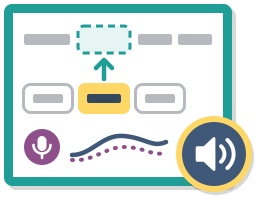
Read Along Practice turns the words of a story or conversation into practice that plays the real recording. It has three activities: Words, to hear each word and see it in its sentence. Fill the gap, to choose a sentence's missing word by ear. Say it, to say each sentence, record it and hear it beside the speaker's.
This guide follows Read Along Practice 0.1.1, published on 23 November 2026 and now on the hub.
Before you start
- A site with Read Along PracticeA site you host yourself, such as WordPress with H5P, where an admin has installed Read Along Practice, or Read Along Lesson, which brings it. It cannot run on h5p.com.
- A story or conversation that is already timedPractice is made from the sentences of a Read Along Storybook page or a Read Along Conversation turn. Make and time that first. Practice borrows its recording and its word times.
- For each wordThe word or phrase, its meaning, the sentence it comes from, and that sentence's recording and word times, copied from the story or conversation.
- For Say itLearners record on an https site with a microphone they allow. Without one, they say the sentence aloud and tap I said it.
Choose the activity
Create new content on your site and choose Read Along Practice, or choose it as the Activity of a section in a Read Along Lesson. Then pick one of three in Activity, at the top of the form.
- Words. Each word is a row. A tap plays the word and opens its sentence, and the meaning stays hidden until the learner asks for it. Not scored.
- Fill the gap. Each sentence is shown with its word missing and a few words to choose from. The learner hears each choice, places one and presses Check. Scored.
- Say it. Each sentence is one to say aloud and record, then to hear beside the speaker's. Not scored.
One activity for each Practice. To offer all three on the same words, make three, or three sections in a Lesson. The same list of words works for each.
Finding your way around. The form is short: Activity, the Words list, Language of the words, then Settings. Text overrides and translations is at the bottom.
Add the words
The Words list has one entry for each word, up to 80. Press Add word for each one and fill in four things.
- Word or phrase: as it is written in its sentence, for example đi or cảm ơn.
- Meaning: what the learner sees when they ask for it.
- Sentence: the sentence the word comes from.
- Sentence translation: shown with the meaning, and under the sentence in Fill the gap and Say it.
Then set Language of the words to the language's code, so browsers and screen readers treat the words correctly.
Write the word exactly as the sentence has it. Practice finds the word in the sentence by its spelling, to mark it, to play it and to take it out for the gap.
In Say it, each entry is a sentence to say. The word still has to be filled in, but the learner works with the whole sentence.
Give each sentence its sound
Practice plays the real recording, never a separate sound file for each word. So each word carries its sentence's recording and the time of every word in it. Both come from the story or conversation you have already timed.
- Recording: upload the same file the story's page or the conversation's turn has. The times are measured in it.
- In the story or conversation, open that page or turn, then open Timings as WebVTT (advanced: for a timings file made elsewhere). Each sentence there is a cue: a line with two times, then the words with a time before each. Copy the cue of your sentence.
- Word times (WebVTT): type WEBVTT on the first line, leave a line empty, and paste the cue. The panel with this step shows the shape.
- First word and Last word: which of the sentence's timed words is this word, counting from 1. Leave them empty and Practice finds the word by its spelling.
With the recording and the times in place, a tap on the word plays just that word, and the sentence plays with each word lit as it is spoken.
Fill the gap and Say it need both. A word with no recording or no word times is left out of those two activities. In Words it still shows, with a line saying what is missing.
Two words from one sentence. Give both the same recording and the same word times. Only the word, its meaning and its word numbers differ.
"Written by the lesson generator." The form says this under some fields. The lesson generator is our own studio tool and is not part of this release, so an author fills these fields in by hand.
WEBVTT

00:00:00.400 --> 00:00:03.000
<00:00:00.400>Mình <00:00:01.400>đi <00:00:02.400>chợ.
One cue for the sentence, with a time before each word.Fill the gap: add the wrong choices
Fill the gapIn Fill the gap the learner chooses between the right word and up to four wrong ones. Each choice can be heard before it is placed, so every wrong choice needs a sound of its own.
- In a word, open Wrong choices (Fill the gap) and press Add choice.
- In Word, type the wrong word.
- Give it the Recording and Word times (WebVTT) of a sentence that word is said in, and its First word number, exactly as in step 3.
Two wrong choices for each sentence are plenty. Words from the other sentences of the same story or conversation work well, because learners have heard them.
A word with no wrong choice is left out. Fill the gap asks only the sentences that have a recording, word times and at least one wrong choice.
The order is mixed for you. The choices show in a mixed order that stays the same each time the activity is opened.
Say it: choose the way
Say itIn Settings, How Say it works has two ways.
- Listen and repeat: the sentence is shown, the learner hears it, then records it and hears both. It suits beginners, and it is what a new Practice starts with.
- Say it from the prompt: the sentence is hidden behind a prompt. The learner says it and records it first, then shows the sentence and hears both.
The prompt is the sentence's translation. To ask in your own words, fill in Your own prompt (Say it) on that word, for example Ask politely for the bill.
Offer the voice comparison in Say it is on for a new Practice. Once the learner has recorded a sentence, a Compare button shows their voice laid over the speaker's, as pitch and loudness, with a sentence that says where each voice heads.
A guide for the ear, not a score. Say it does not judge the learner's voice. The comparison works on the sentence as a whole, not on single words or tones.
No microphone? The learner is told why, says the sentence aloud and taps I said it.
Pictures and settings
OptionalA word can have a small picture of its own, and Settings has a few choices for how the practice looks. All are fine as they are.
- Small picture of the word, on a word: a picture made for that one word, for lower levels. Add Alternative text for the word's picture, for a screen reader.
- Where a word's own picture shows (Words): Beside the word in the list, or With the meaning, once it is shown.
- Picture, on a word, with Picture beside a word's sentence in Settings: shows a page's picture beside the sentence. It is off unless you choose it.
- Ask "I knew it" or "Not yet" after the meaning: on for a new Practice. It is for the learner's own check and is not scored.
- Text size: how large the words are.
A picture beside the word gives its meaning away. That helps beginners. For recall, show it with the meaning instead.
A page's picture is about the page, not one word. It may show other words too, which is why it stays off unless you turn it on.
Save, then check it as a learner
Save with your site's own button, then open the practice the way a learner would.
- Words. Tap a word. It plays, and its row opens with the sentence and the word marked in it. Hear the sentence plays the sentence with each word lit. Show meaning, the eye button, shows the meaning and the translation, then asks Did you know it? A line above the list counts the words opened, and the activity is done once every word's meaning has been shown.
- Fill the gap. Tap a choice to hear it and place it, then press Check. A right answer plays the whole sentence. A wrong one says Not quite. Try another word. and the learner tries again. The score is the number right at the first Check. The end lists every sentence to hear again, the ones missed first, with Try again.
- Say it. Press Hear the sentence, then the microphone, say the sentence and press it again to stop. A recording can be up to 20 seconds. Then Hear yours, Compare and Next. The end is Listen back: every sentence with the speaker's, the learner's own recording and the comparison side by side, and Try again.
Check each word's sound. If a tap plays the wrong part of the sentence, look at that word's word times and its First word number.
Try it on a phone too, and try Say it there with the microphone.
Worth knowing once the practice works
In a Read Along Lesson
A Lesson section can hold Read Along Practice, so a lesson can go from its conversation or story straight to Words, Fill the gap and Say it on the same sentences. The Lesson guide covers sections.
- Words and Say it sections are not scored. A Fill the gap section is, and the lesson's score follows it as each answer is given.
- Each word keeps its own copy of its sentence, word times and recording, so the section plays by itself.
Source check
A word can keep a note of the story page or conversation turn it was copied from, in its Where this comes from group. When the Practice is a section of a Lesson and that page or turn has changed since, a note appears on the word, saying whether its words were edited, re-timed or given another recording.
Refresh from the source copies the sentence, word times, word numbers, recording and picture again. Nothing changes until you press it. A Practice made by itself shows no note.
Recording, and privacy
A recording stays in the learner's browser only. It is never uploaded, and it is not kept in the saved progress or in what is reported to your site.
In Say it, each sentence's recording is kept in the page until the learner presses Try again or closes the page, so the end can play them back. Recording a sentence again replaces the old one.
Scores and reporting
- Fill the gap reports as one activity with one score: a point for each sentence right at the first Check.
- Words and Say it are not scored. They report that they were completed.
- After Try again in Fill the gap, the score starts again from zero.
Installing
Download Read Along Practice under Get it and upload it on your site's H5P Libraries page. Its file is small and holds everything it needs. Read Along Lesson's file brings it too.
On WordPress, a site that has added the LeapLearn hub can install and update it where H5P content is added. On Moodle, upload the file.
Accessibility
Practice works by keyboard and with screen readers. Fill the gap never reads out its answer before the sentence is solved. The recorder says what it is doing, and the comparison comes with a sentence that describes the picture.
Text in the player
Every text the learner sees can be changed or translated in Text in the player, under Text overrides and translations at the bottom of the form. There are 94 in all.
Not in this version
Read Along Practice is at 0.1.1, an early release. Say it does not score the learner's voice, and the comparison does not yet look at single words or tones. A check with a real screen reader on a phone is still to come. The lesson generator, which writes Practice sections from a timed story or conversation, is a studio tool and not part of this release.
If you see this
The shortest working practice is a Title, Words as the activity, and one word with its meaning, its sentence, the recording and the word times. Everything else can be added later without redoing that work.
The example words on this page are from the sample conversation written for this site, and the panels are illustrations with the real labels.